
Kuboard API Access Key
The Access Key (AK) and the Secret Key (SK) are a pair of API credentials that provide password-free authentication for programmatic access such as scripts, CI, and MCP.
Difference from the login password
The login password is used for Web login; access keys are for programmatic access (API / MCP). The two are independent of each other and can coexist; keys only affect programmatic access and do not affect Web login.
Create an Access Key
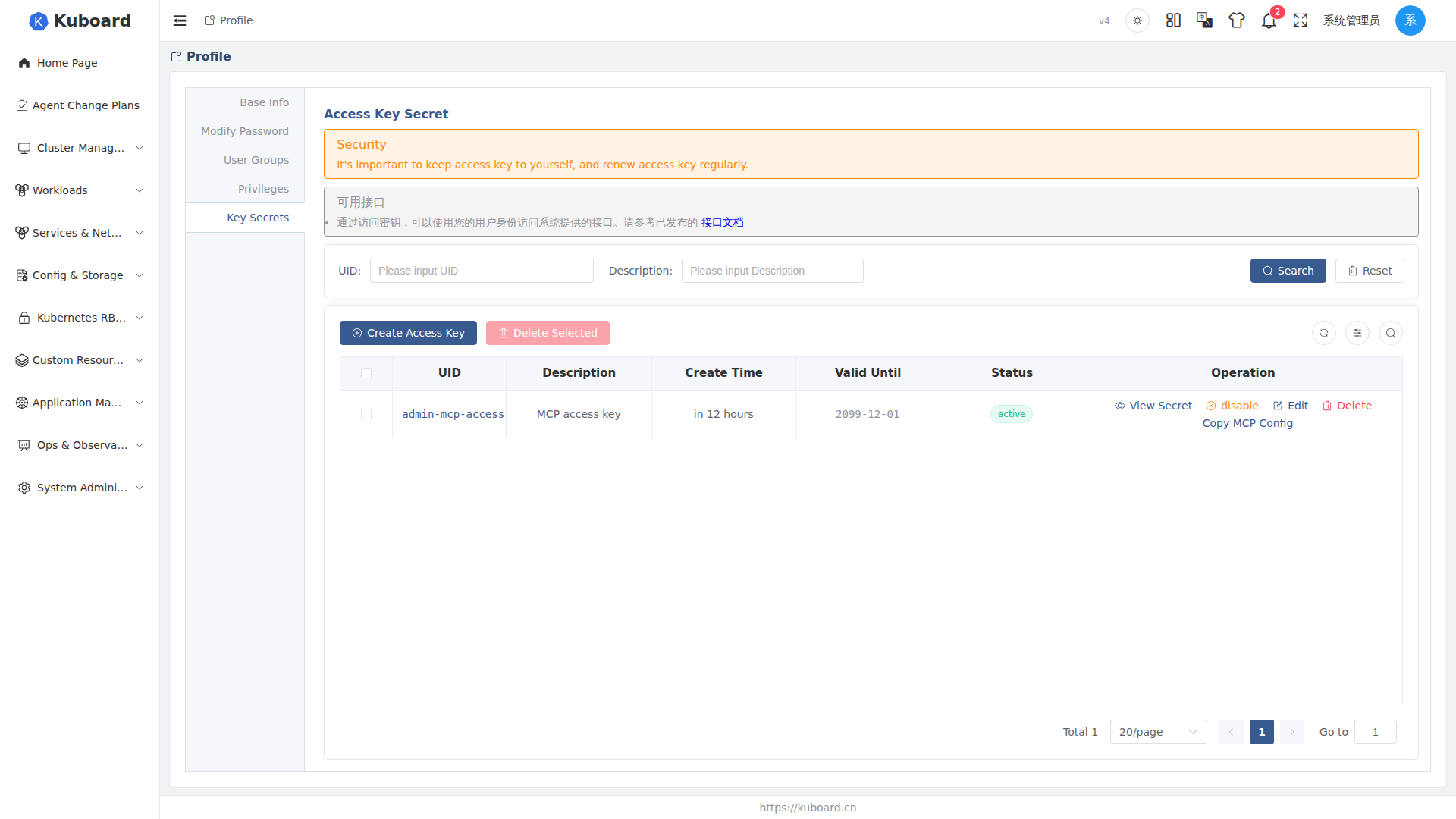
- Click the user avatar at the top right → "Key Secrets" to enter the key management page (the "Key Secrets" tab on the "Personal Info" page is the same page).
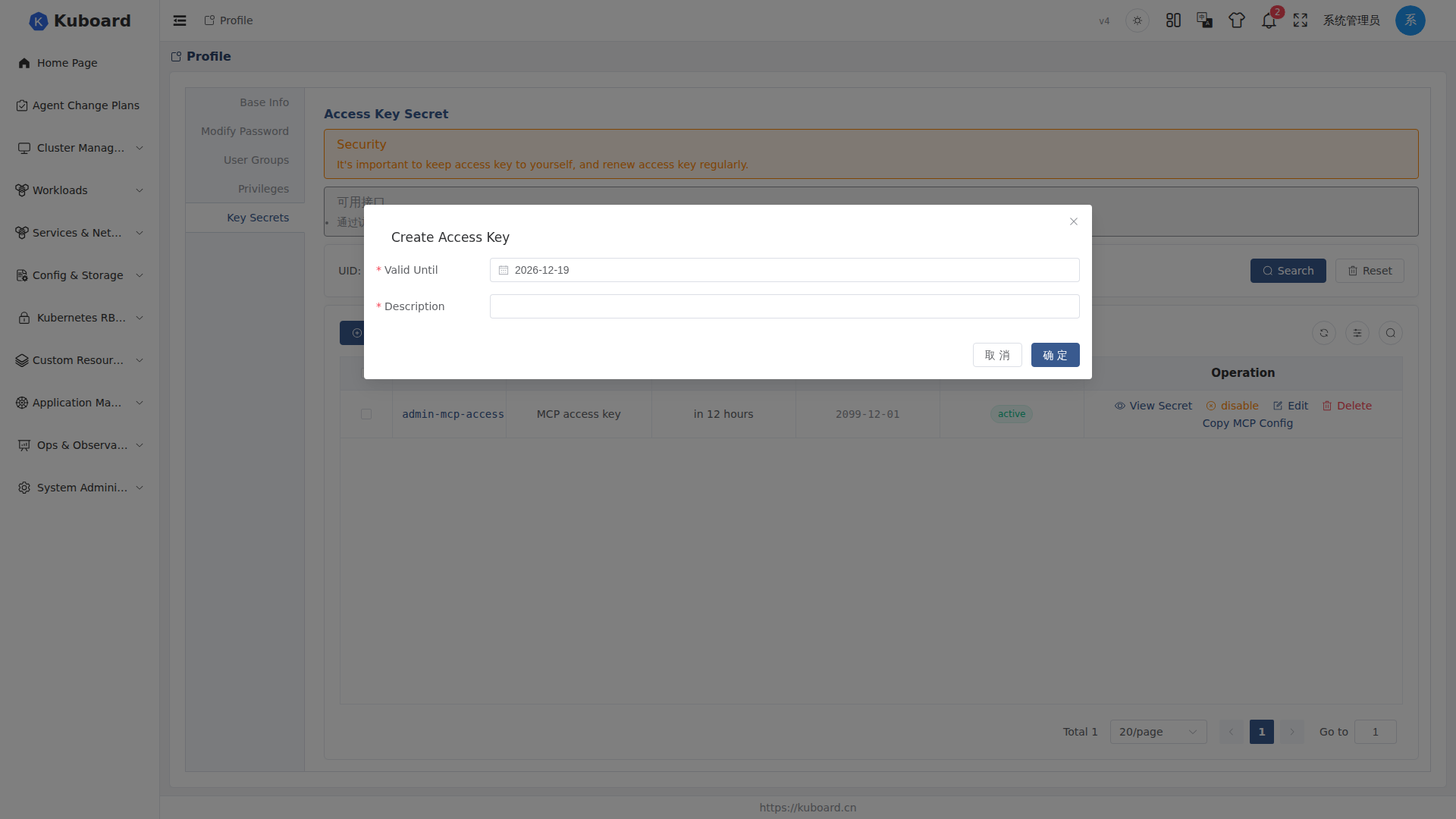
- Click "Create Access Key", fill in the Description (required, e.g.
ci-script,opencode-mcp) and the Valid Until (required, default 90 days, optional from one week to one year). - Click "OK"; the key is created successfully and appears in the list.
The list shows the Access Key ID (AK, globally unique), Description, Create Time, Valid Until (becomes invalid automatically after expiry), and Status.
Call APIs with a Key
Add the Kb-Access-Key request header, with value <Access Key ID>.<Access Key> (AK and SK joined with an English period), to call APIs without a login session. To verify that a key is valid — view the current user info:
curl -X GET \
  -H "content-type: application/json" \
  -H "Kb-Access-Key: <Access Key ID>.<Access Key>" \
  http://<kuboard-host>/api/login.kuboard.cn/v4/login-get-profile
If the current user's profile is returned, the key is valid. For more available APIs, see the "Available APIs" notice at the top of the key management page.
Alternative: Authorization: Bearer
You can also use the Authorization: Bearer <AK>.<SK> request header; the format is the same. The MCP Server authenticates this way; see Kuboard MCP integration.
Copy the MCP Config in One Click
On the key list, click "Copy MCP Config"; in the dialog:
- Select the Access Key to use;
- Select the target Agent (Claude Desktop, Cursor, VS Code, opencode, Claude Code, curl, etc.);
- Click "Copy" to get an MCP Server config snippet that can be written directly into that client's config file.
The dialog tells you where each client's config file is stored; the MCP Server URL is https://<kuboard-host>/mcp. For the full integration steps, see MCP integration guide.
Do not commit this to a code repository
The MCP config snippet contains the Secret, a sensitive credential; do not commit it to a code repository to avoid the key leaking along with your code.
View Secret
The list only shows the key ID; the Secret must be viewed by clicking "View Secret" (or clicking the key ID). The dialog shows:
| Item | Description |
|---|---|
| Access Key ID | AK |
| Access Key | The SK, shown in plaintext; treat it like a password, do not leak it |
| Kb-Access-Key | The assembled AK.SK, with a one-click copy button, ready for direct use in the request header |
A verification command (curl to view the current user info) is also included; copy and run it directly to verify.
Manage Keys
- Disable / Enable: click "Disable" and confirm, and the key becomes invalid immediately; restore it at any time with "Enable"; "Edit" lets you modify the Description and the Valid Until (the AK and SK do not change).
- Delete: supports deleting a single key and batch-deleting selected rows. After deletion the key becomes invalid immediately and cannot be recovered; first make sure the scripts/Agents using this key no longer need it.
- Status: Active (can be used for authentication); Disabled (manually disabled, can be re-enabled); Expired (past the Valid Until date, automatically invalid).
- Authentication failed (401): confirm the
Kb-Access-Keyheader format is<AK>.<SK>(an English period), the status is "Active", and the Valid Until date has not passed; disabling/deleting a key takes effect immediately. - Key expired: an expired key cannot be re-enabled; create a new key and replace the old config in scripts/Agents.
Security habits
- The Secret is as sensitive as a password: keep it safe; do not write it into code repositories or public documentation;
- Create separate keys for different purposes, to make auditing and individual revocation easier;
- Rotate regularly; delete old keys that are no longer in use;
- If you suspect a leak, immediately "Disable" or "Delete" the key and create a new key to replace it.
- The top of the key management page provides a security reminder: replace and keep access keys safe on a regular basis.
API Documentation
For the APIs involved in this section, see the Swagger UI "Login APIs" group.
Related Documentation
- Kuboard MCP integration — integrate AI Agents (Claude Code, opencode, etc.) with access keys
- Login — Web login and password
- Multi-factor authentication (MFA) — the second verification at login
- User management — account management and password reset