
User Groups
A user group (User Group) organizes multiple users and binds roles (Role) to the group uniformly; every member automatically gets the role permissions, enabling batch authorization. Applicable to: administrators.
Permission chain: User → User Group → Role → Permissions.
Applicable scenarios
- New employee onboarding: add the account to a user group; it immediately gets the group's permissions
- Employee job transfer: only adjust the roles bound to the group; all members take effect simultaneously
- Employee departure / temporary freeze: remove the member, or disable the user group; permissions become invalid immediately
Entering the User Groups Page
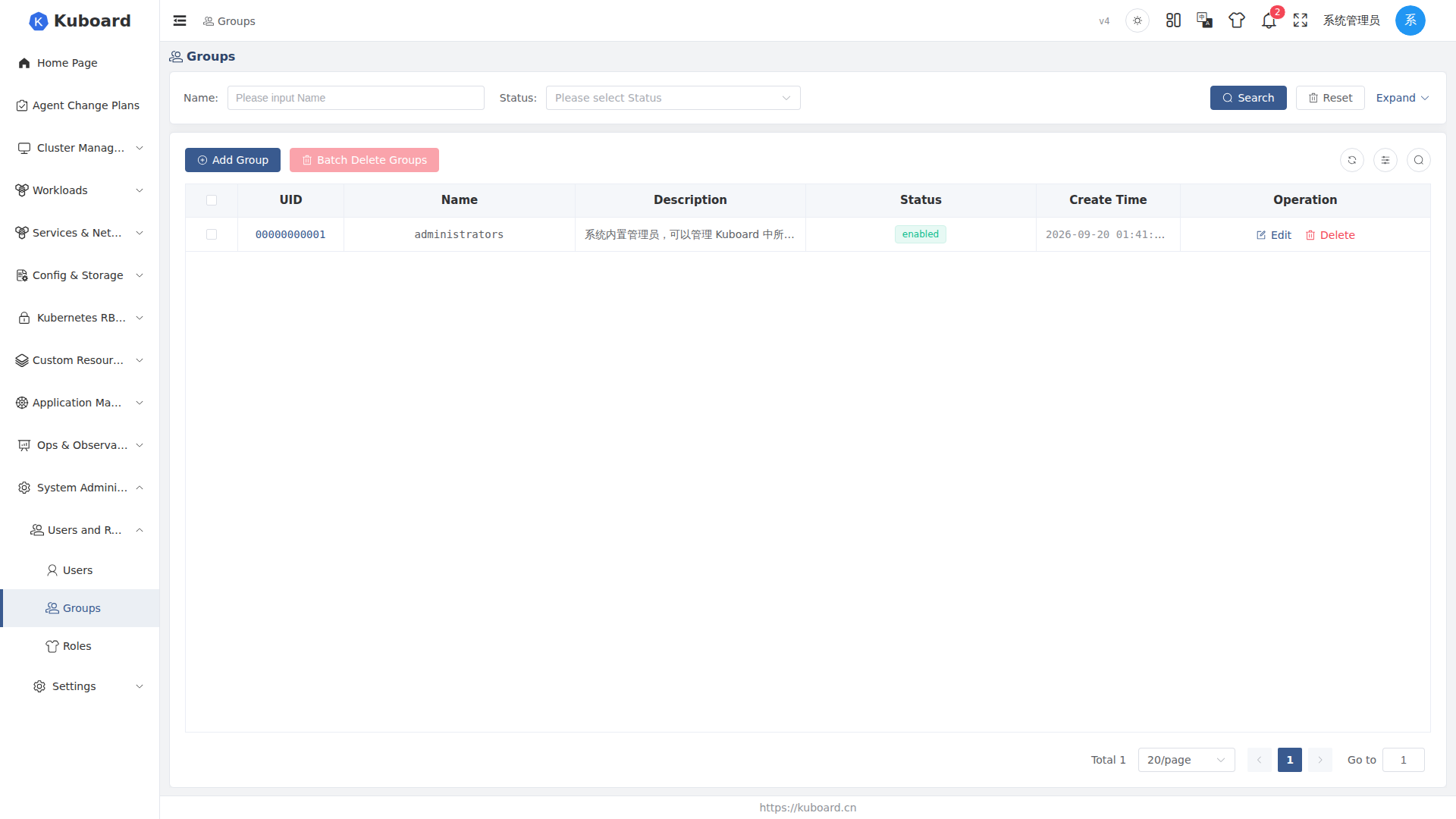
UI path: System Administration → Users and Roles → Groups. The list shows the existing user groups: Name (searchable by name), Description, Status (enabled / disabled), and Creation Time (filterable by time range). The top-right provides Add Group and Batch Delete Groups; each row's Operation column provides Edit and Delete.
Creating a User Group
- Click Add Group; in the drawer that slides out from the right, fill in the Name (required) and Description. The ID is generated automatically by the system.
- Click Confirm; you are redirected to the detail page of that user group, where you can start adding members and binding roles right away.
The name cannot be changed after creation
User group names are globally unique and cannot be edited after creation; if you get it wrong, delete it and create it again. The description and status can be changed at any time.
Adding Members (Bounded Users)
- On the Bounded Users tab, click Add User-Group Binding; a dialog for selecting users pops up (members already bound to this group are automatically excluded).
- Select multiple users, and specify the Expiry Date (required).
- Click Confirm; the binding record appears in the list, and the member immediately gets all role permissions bound to the group.
The Bounded Users list shows each member's account information (Username / Full Name / Email / Source), user status, binding status, and expiry date.
The expiry date only applies to this binding
After it expires, the member automatically loses the group's permissions; for long-term validity, just specify a far-future date again.
Assigning Roles to a User Group
On the Bounded Roles tab of the user group detail page, bind roles to this group (one binding = User Group + Role + Scope). Click Add Group-Role Binding:
- Select the Scope Type (determines in which range the role takes effect):
| Scope Type | Meaning | What to select additionally |
|---|---|---|
| kuboard | Kuboard platform level | No cluster / namespace needed |
| cluster | Kubernetes cluster level | Bind clusters (multiple selection, or Any Cluster) |
| namespace | Namespace level | Bind cluster + bind namespaces (either can be set to Any) |
- Select the cluster / namespace according to the scope type (you can directly check Any).
- Select the role: the dropdown options are already filtered by the selected scope type and only show the roles available in that range.
- Click Confirm; the binding takes effect for all members of the group immediately. A group can be bound to multiple roles, and the same role can also be bound to different clusters / namespaces separately.
The scope must be consistent with the role
For example, a role defined only for the namespace scope will not appear in the candidate list for the cluster scope; select the scope type first, then select the role.
Viewing the Permissions a User Group Has
On the Has Access Privileges tab, the authorization details the group actually holds (derived from all its role bindings) are aggregated and shown: each record lists the scope, API group, resource, and executable verbs; hovering over a permission shows where it is "obtained from the following roles". If the expected permissions do not appear here, check step by step: "is the member in the group → does the group-role binding exist and is it enabled → does the scope cover the target cluster / namespace → is the role itself disabled".
Managing User Groups
- Edit: modify the description, switch the status (enabled / disabled), etc.
- Disable: after switching the status to disabled, all group members temporarily lose the group's permissions; re-enabling restores them.
- Delete: deleting a user group cascades the deletion of all its user bindings and role bindings, and the related permissions become invalid immediately. Both single-item deletion and Batch Delete Groups are supported.
You can also manage from the user and role ends
On the User detail page, you can look up which groups a user has joined, and modify the bindings and expiry dates; on the Role detail page, you can look up which user groups a role is bound to, and bind groups to the role in batch.
API Reference
See the Swagger UI "Users and Roles" group for the endpoints involved in this page.