
Resource List Pages
Every Kubernetes resource list page in Kuboard — Deployments, Pods, ConfigMaps, CRDs and so on — follows the same page structure, so the interactions and operations are identical everywhere. This page summarizes those commonalities; resource-specific fields and actions are covered in the relevant sections of this guide (e.g. Deployments).
How to Open
Open the list page of any resource from the left menu (for example Workloads → Deployment). The page is laid out as follows, from top to bottom:
| Area | Contents |
|---|---|
| Title bar | Resource name + links to the Kubernetes official documentation (concepts + API reference) |
| Toolbar | Scope-mode (multi-scope / single-scope) segmented control, cache status, auto-refresh, create and batch-action buttons, CSV export |
| Data area | Multi-scope: the resource tree on the left; single-scope: cluster / namespace selectors + the resource table |
Scope Mode: Multi-Scope / Single-Scope
The Scope mode control in the toolbar is a segmented switch that decides which clusters / namespaces this query covers. Your choice is remembered for next time (older versions called these "tree mode / search mode"; the capability and URL parameters are unchanged):
| Mode | How you pick the scope | Good for |
|---|---|---|
| Multi-scope | The left side shows a cluster → namespace tree (namespaced resources) or a cluster tree (cluster-scoped resources); you can tick several clusters / namespaces at once. When collapsed, the button shows "Scope · N" | Comparing several namespaces, cross-cluster troubleshooting |
| Single-scope | Queries one namespace in one cluster (the namespace can be all); filter conditions live in an inline Filter card above the table | Many clusters / namespaces but you only care about one spot; also the fallback when a list page fails to load because the request is too long |
Switching from multi-scope to single-scope
The switch takes the first item of your current selection and shows "Narrowed to cluster/namespace (was N)" at the top — it does not silently drop your selection, nor decide for you which ones to keep. Use "Back to multi-scope" when you need several namespaces at once.
Resource availability
In multi-scope mode, if the current resource is not installed on a cluster (e.g. the cluster has no Gateway API), the corresponding node shows a ⚠ icon; hovering it reveals an installation guide.
Cached vs Direct Data
List data comes from one of two channels, shown by a "use cache / no cache" label at the top of the page:
| Channel | Description | Pagination |
|---|---|---|
| Cached list | Resources configured for automatic sync (e.g. Pods, Deployments, Namespaces); the list is read from the Kuboard cache for fast access | Full-cluster search and pagination supported |
| Direct list | Resources without caching (mostly low-frequency and custom resources) are read directly from the cluster API; data is real-time | No pagination (the list footer shows "items that are not in the cache cannot be paginated") |
Common Columns
Every list page has the following common columns:
| Column | Description |
|---|---|
| Name | Click to open the detail page (when you have get permission); resources being deleted are shown with a strikethrough |
| Namespace | The namespace the resource belongs to (namespaced resources) |
| Creation time | Displayed in the selected cluster's time zone |
| Alive status | Alive / dead marker (some resources) |
| Operations | Edit (when the resource has an edit page), View YAML, Delete; resource-specific actions (e.g. restart, scale) appear as extra buttons next to them |
Common Operations
- Create: the Add button in the toolbar, via a form or a YAML wizard depending on the resource type;
- Edit / View YAML / Delete: in the row's operations column;
- Batch operations: select rows and act on all of them, e.g. batch delete — the confirmation dialog distinguishes "items in the cluster" from "items in the cache" and handles them separately; workloads also support batch restart, etc.;
- Auto refresh: the auto-refresh button in the toolbar; append
?autoRefresh=trueto the URL to enable it as soon as the page opens.
Export to CSV
The Export CSV button at the end of the left-hand action group downloads the current list as a .csv file, using the range and columns you pick.
Export range — choose one:
| Range | Where it is generated | Notes |
|---|---|---|
| Selected (N items) | Frontend | Only the rows you ticked; disabled when nothing is selected |
| Current page (N rows) | Frontend | Only the current page (row count follows your page-size setting) |
| Current filter result | Server | Runs the current search / advanced-filter conditions on the server, not limited by pagination |
| All | Server | Every item in the current scope, filter conditions ignored |
Server-side export initially covers nodes / pods / deployments only. For other resources, "Current filter result / All" show "Provided in a later version"; use "Selected / Current page" instead.
Export columns: pick the columns in the dialog (all selected by default). Structural columns — selection, expand, index, radio, operation — are never exported; the dialog notes "N column(s) are display only". Column values are the same ones the table uses, so the column set is identical across ranges.
Format and limits:
- UTF-8 with BOM, RFC 4180 escaping (commas / quotes / newlines / Chinese text open correctly in Excel); numbers are exported without unit suffixes;
- Hard limit of 10,000 rows per export: when the result is larger the dialog warns "Result is about N rows; only the first 10,000 rows will be exported" and requires you to tick "I understand that only 10,000 rows will be exported" — it never truncates silently or produces a half-written file.
Permissions and auditing:
- Data is scoped by your RBAC permissions: scopes you cannot read are skipped rather than failing the whole export, and the response header
X-Kuboard-Skipped-Scopescarries the skipped count; - When no scope is readable at all the endpoint returns 403 (a JSON error body) instead of an empty file;
- Every export writes an audit event; filter by resource on the Audit page to review them.
Export and filters share one source
The row count of a "Current filter result" export matches the "N items (filtered)" counter on the list; the export itself never changes your filters or selection.
Filters Are Synced to the Address Bar
The filter conditions of a list page (search keyword, cluster and namespace selection, page size) are synced to the browser address bar:
- Changing a filter updates the address bar; a cleared condition is removed from it;
- Copy the address-bar link and send it to a colleague — they open the same set of data;
- Returning from a detail page to the list keeps your filters, so you do not have to pick them again.
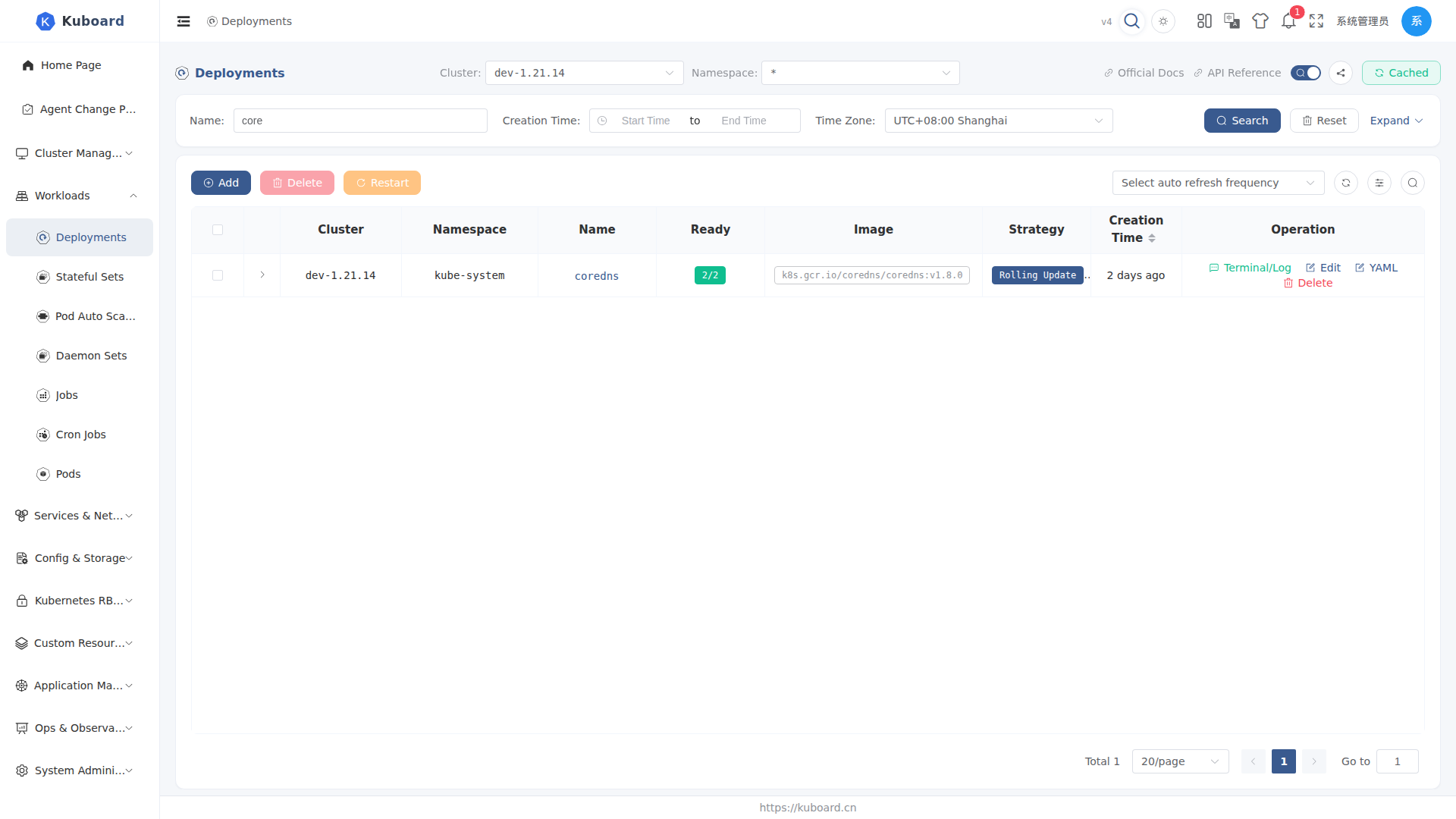
The parameters that appear in the address bar:
| Parameter | Meaning |
|---|---|
mode | Scope mode: search (single-scope) or tree (multi-scope); values from older links still work |
clusterId / namespace | The cluster and namespace selected in single-scope mode |
scopes | The cluster / namespace nodes selected in multi-scope mode |
pageSize | Number of rows per page |
| Filter conditions | One parameter per filter (e.g. name keyword, creation time range), named after the corresponding field in the table's filter boxes |
Share button
Both the list page and the resource detail page have a Share button next to the title — clicking it copies the current address-bar link (dropping parameters that only affect you, such as auto-refresh), with a confirmation toast. Use it instead of assembling a link by hand.
Permissions
- Every button on the list page is shown / hidden automatically according to the current user's RBAC permissions; unauthorized actions simply do not appear;
- If the current user has no
listpermission on the whole cluster, the page shows "Limited authorities" at the top — pick a namespace you have access to in the namespace selector.